# google_fonts
[](https://pub.dev/packages/google_fonts)
A Flutter package to use fonts from [fonts.google.com](https://fonts.google.com/).
 ## Features
[](https://www.youtube.com/watch?v=8Vzv2CdbEY0)
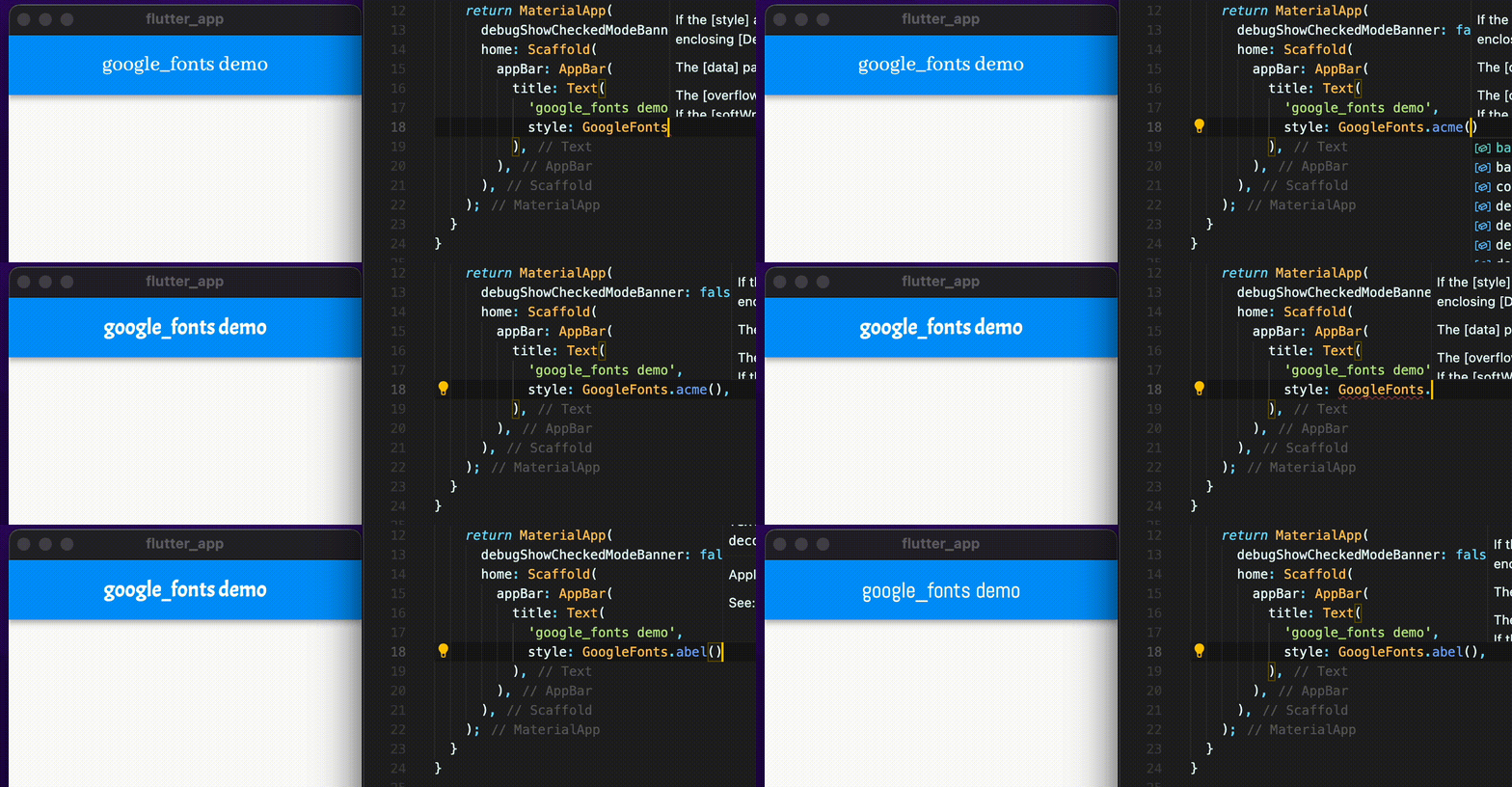
- HTTP fetching at runtime, ideal for development. Can also be used in production to reduce app size
- Font file caching, on device file system
- Font bundling in assets. Matching font files found in assets are prioritized over HTTP fetching. Useful for offline-first apps.
## Usage
For example, say you want to use the [Lato](https://fonts.google.com/specimen/Lato) font from Google Fonts in your Flutter app.
1. Add the `google_fonts` package to your [pubspec dependencies](https://pub.dev/packages/google_fonts/install).
1. Import `GoogleFonts`.
```dart
import 'package:google_fonts/google_fonts.dart';
```
### Text styles
To use `GoogleFonts` with the default `TextStyle`:
```dart
Text(
'This is Google Fonts',
style: GoogleFonts.lato(),
),
```
Or, if you want to load the font dynamically:
```dart
Text(
'This is Google Fonts',
style: GoogleFonts.getFont('Lato'),
),
```
To use `GoogleFonts` with an existing `TextStyle`:
```dart
Text(
'This is Google Fonts',
style: GoogleFonts.lato(
textStyle: TextStyle(color: Colors.blue, letterSpacing: .5),
),
),
```
or
```dart
Text(
'This is Google Fonts',
style: GoogleFonts.lato(textStyle: Theme.of(context).textTheme.headline4),
),
```
To override the `fontSize`, `fontWeight`, or `fontStyle`:
```dart
Text(
'This is Google Fonts',
style: GoogleFonts.lato(
textStyle: Theme.of(context).textTheme.displayLarge,
fontSize: 48,
fontWeight: FontWeight.w700,
fontStyle: FontStyle.italic,
),
),
```
### Text themes
You can also use `GoogleFonts.latoTextTheme()` to make or modify an entire text theme to use the "Lato" font.
```dart
...
return MaterialApp(
theme: _buildTheme(Brightness.dark),
);
}
ThemeData _buildTheme(brightness) {
var baseTheme = ThemeData(brightness: brightness);
return baseTheme.copyWith(
textTheme: GoogleFonts.latoTextTheme(baseTheme.textTheme),
);
}
```
Or, if you want a `TextTheme` where a couple of styles should use a different font:
```dart
final textTheme = Theme.of(context).textTheme;
MaterialApp(
theme: ThemeData(
textTheme: GoogleFonts.latoTextTheme(textTheme).copyWith(
bodyMedium: GoogleFonts.oswald(textStyle: textTheme.bodyMedium),
),
),
);
```
### Visual font swapping
To avoid visual font swaps that occur when a font is loading, use [FutureBuilder](https://api.flutter.dev/flutter/widgets/FutureBuilder-class.html) and [GoogleFonts.pendingFonts()](https://pub.dev/documentation/google_fonts/latest/google_fonts/GoogleFonts/pendingFonts.html).
See the [example app](https://github.com/material-foundation/flutter-packages/blob/main/packages/google_fonts/example/lib/main.dart).
### HTTP fetching
For HTTP fetching to work, certain platforms require additional steps when running the app in debug and/or release mode. For example, macOS requires the following be present in the relevant .entitlements file:
```
com.apple.security.network.client
```
Learn more at https://docs.flutter.dev/development/data-and-backend/networking#platform-notes.
## Bundling fonts when releasing
The `google_fonts` package will automatically use matching font files in your `pubspec.yaml`'s
`assets` (rather than fetching them at runtime via HTTP). Once you've settled on the fonts
you want to use:
1. Download the font files from [https://fonts.google.com](https://fonts.google.com).
You only need to download the weights and styles you are using for any given family.
Italic styles will include `Italic` in the filename. Font weights map to file names as follows:
```dart
{
FontWeight.w100: 'Thin',
FontWeight.w200: 'ExtraLight',
FontWeight.w300: 'Light',
FontWeight.w400: 'Regular',
FontWeight.w500: 'Medium',
FontWeight.w600: 'SemiBold',
FontWeight.w700: 'Bold',
FontWeight.w800: 'ExtraBold',
FontWeight.w900: 'Black',
}
```
2. Move those fonts to some asset folder (e.g. `google_fonts`). You can name this folder whatever you like and use subdirectories.

3. Ensure that you have listed the asset folder (e.g. `google_fonts/`) in your `pubspec.yaml`, under `assets`.

Note: Since these files are listed as assets, there is no need to list them in the `fonts` section
of the `pubspec.yaml`. This can be done because the files are consistently named from the Google Fonts API
(so be sure not to rename them!)
See the [API docs](https://pub.dev/documentation/google_fonts/latest/google_fonts/GoogleFonts/config.html) to completely disable HTTP fetching.
## Licensing Fonts
The fonts on [fonts.google.com](https://fonts.google.com/) include license files for each font. For
example, the [Lato](https://fonts.google.com/specimen/Lato) font comes with an `OFL.txt` file.
Once you've decided on the fonts you want in your published app, you should add the appropriate
licenses to your flutter app's [LicenseRegistry](https://api.flutter.dev/flutter/foundation/LicenseRegistry-class.html).
For example:
```dart
void main() {
LicenseRegistry.addLicense(() async* {
final license = await rootBundle.loadString('google_fonts/OFL.txt');
yield LicenseEntryWithLineBreaks(['google_fonts'], license);
});
runApp(...);
}
```
## Testing
See [example/test](https://github.com/material-foundation/flutter-packages/blob/main/packages/google_fonts/example/test) for testing examples.
## Features
[](https://www.youtube.com/watch?v=8Vzv2CdbEY0)
- HTTP fetching at runtime, ideal for development. Can also be used in production to reduce app size
- Font file caching, on device file system
- Font bundling in assets. Matching font files found in assets are prioritized over HTTP fetching. Useful for offline-first apps.
## Usage
For example, say you want to use the [Lato](https://fonts.google.com/specimen/Lato) font from Google Fonts in your Flutter app.
1. Add the `google_fonts` package to your [pubspec dependencies](https://pub.dev/packages/google_fonts/install).
1. Import `GoogleFonts`.
```dart
import 'package:google_fonts/google_fonts.dart';
```
### Text styles
To use `GoogleFonts` with the default `TextStyle`:
```dart
Text(
'This is Google Fonts',
style: GoogleFonts.lato(),
),
```
Or, if you want to load the font dynamically:
```dart
Text(
'This is Google Fonts',
style: GoogleFonts.getFont('Lato'),
),
```
To use `GoogleFonts` with an existing `TextStyle`:
```dart
Text(
'This is Google Fonts',
style: GoogleFonts.lato(
textStyle: TextStyle(color: Colors.blue, letterSpacing: .5),
),
),
```
or
```dart
Text(
'This is Google Fonts',
style: GoogleFonts.lato(textStyle: Theme.of(context).textTheme.headline4),
),
```
To override the `fontSize`, `fontWeight`, or `fontStyle`:
```dart
Text(
'This is Google Fonts',
style: GoogleFonts.lato(
textStyle: Theme.of(context).textTheme.displayLarge,
fontSize: 48,
fontWeight: FontWeight.w700,
fontStyle: FontStyle.italic,
),
),
```
### Text themes
You can also use `GoogleFonts.latoTextTheme()` to make or modify an entire text theme to use the "Lato" font.
```dart
...
return MaterialApp(
theme: _buildTheme(Brightness.dark),
);
}
ThemeData _buildTheme(brightness) {
var baseTheme = ThemeData(brightness: brightness);
return baseTheme.copyWith(
textTheme: GoogleFonts.latoTextTheme(baseTheme.textTheme),
);
}
```
Or, if you want a `TextTheme` where a couple of styles should use a different font:
```dart
final textTheme = Theme.of(context).textTheme;
MaterialApp(
theme: ThemeData(
textTheme: GoogleFonts.latoTextTheme(textTheme).copyWith(
bodyMedium: GoogleFonts.oswald(textStyle: textTheme.bodyMedium),
),
),
);
```
### Visual font swapping
To avoid visual font swaps that occur when a font is loading, use [FutureBuilder](https://api.flutter.dev/flutter/widgets/FutureBuilder-class.html) and [GoogleFonts.pendingFonts()](https://pub.dev/documentation/google_fonts/latest/google_fonts/GoogleFonts/pendingFonts.html).
See the [example app](https://github.com/material-foundation/flutter-packages/blob/main/packages/google_fonts/example/lib/main.dart).
### HTTP fetching
For HTTP fetching to work, certain platforms require additional steps when running the app in debug and/or release mode. For example, macOS requires the following be present in the relevant .entitlements file:
```
com.apple.security.network.client
```
Learn more at https://docs.flutter.dev/development/data-and-backend/networking#platform-notes.
## Bundling fonts when releasing
The `google_fonts` package will automatically use matching font files in your `pubspec.yaml`'s
`assets` (rather than fetching them at runtime via HTTP). Once you've settled on the fonts
you want to use:
1. Download the font files from [https://fonts.google.com](https://fonts.google.com).
You only need to download the weights and styles you are using for any given family.
Italic styles will include `Italic` in the filename. Font weights map to file names as follows:
```dart
{
FontWeight.w100: 'Thin',
FontWeight.w200: 'ExtraLight',
FontWeight.w300: 'Light',
FontWeight.w400: 'Regular',
FontWeight.w500: 'Medium',
FontWeight.w600: 'SemiBold',
FontWeight.w700: 'Bold',
FontWeight.w800: 'ExtraBold',
FontWeight.w900: 'Black',
}
```
2. Move those fonts to some asset folder (e.g. `google_fonts`). You can name this folder whatever you like and use subdirectories.

3. Ensure that you have listed the asset folder (e.g. `google_fonts/`) in your `pubspec.yaml`, under `assets`.

Note: Since these files are listed as assets, there is no need to list them in the `fonts` section
of the `pubspec.yaml`. This can be done because the files are consistently named from the Google Fonts API
(so be sure not to rename them!)
See the [API docs](https://pub.dev/documentation/google_fonts/latest/google_fonts/GoogleFonts/config.html) to completely disable HTTP fetching.
## Licensing Fonts
The fonts on [fonts.google.com](https://fonts.google.com/) include license files for each font. For
example, the [Lato](https://fonts.google.com/specimen/Lato) font comes with an `OFL.txt` file.
Once you've decided on the fonts you want in your published app, you should add the appropriate
licenses to your flutter app's [LicenseRegistry](https://api.flutter.dev/flutter/foundation/LicenseRegistry-class.html).
For example:
```dart
void main() {
LicenseRegistry.addLicense(() async* {
final license = await rootBundle.loadString('google_fonts/OFL.txt');
yield LicenseEntryWithLineBreaks(['google_fonts'], license);
});
runApp(...);
}
```
## Testing
See [example/test](https://github.com/material-foundation/flutter-packages/blob/main/packages/google_fonts/example/test) for testing examples.